-Godot 3.2
(Download)-Assets
(Download)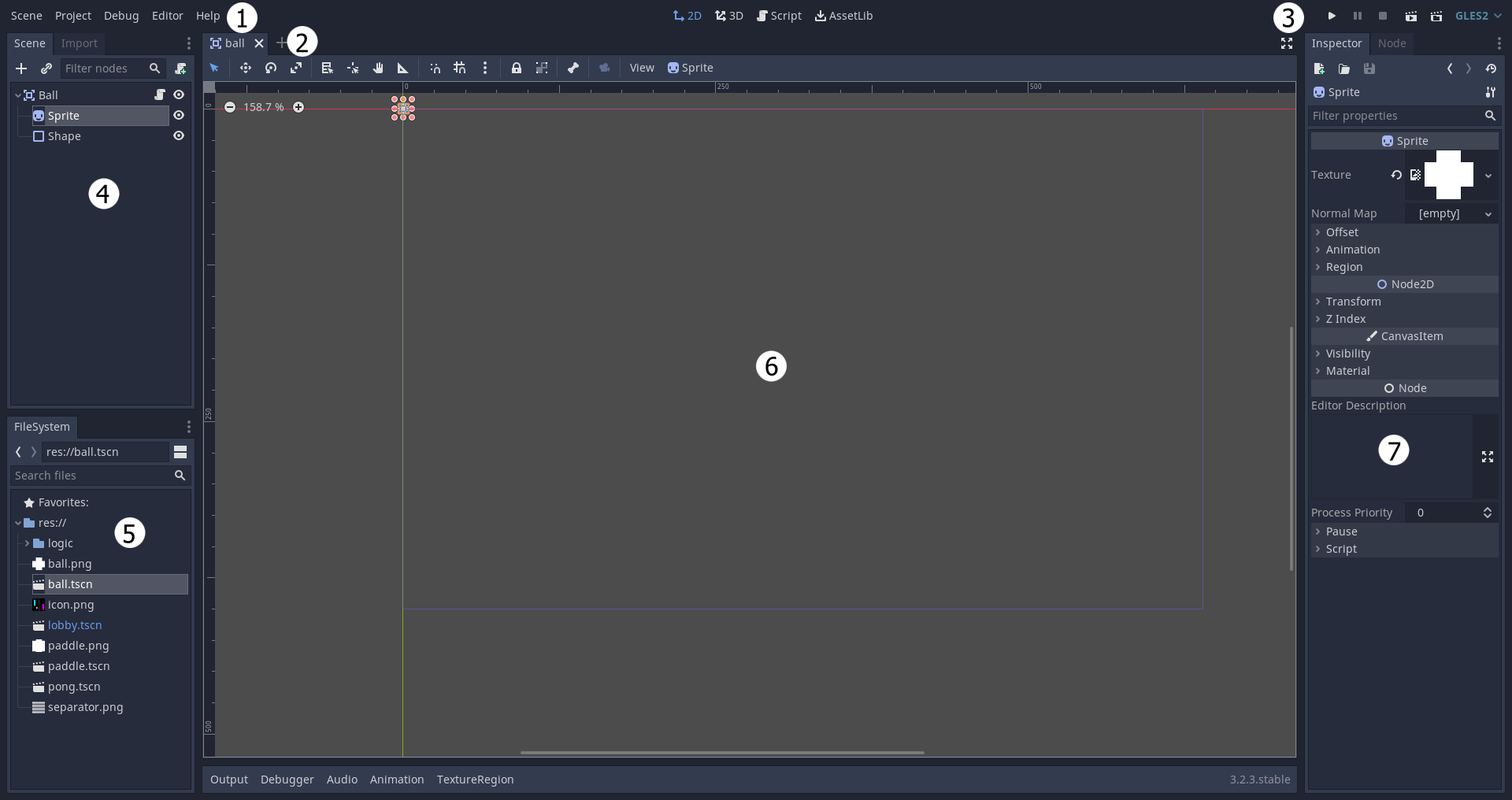
- Here you can change your project settings or export you project. You can change the screen size, render engine, render settings, and more of your project.
- Here you can change how your Viewport(6) looks. You can show a grid and make objects snap to it, or you can make your mouse move, rotate, or scale an object.
- Here you can test your project within Godot. You can press play to run the entire project or you can play a scene in order to play the selected scene.
- Here you'll see the objects in the scene, such as sprites(images). You can select and organize the objects in the scene here.
- Here you'll see the available assets or files including code, scenes, and sprites. You can drag and drop a file to insert it into a scene or you can open a scene.
- Here you can move around and layout your objects in the scene. It is like a preview on how your scene will look when the game starts. It's where you design the game.
- Here you can change a selected object's variables or settings. You can change the size, opacity, and more of an object. You can even change the variables you've made.
- This is an object that a player can control. They won't be affected by physics(gravity, friction), so you have to add that manually in the code.
- This is the boundary/border of an object. Without it 2 objects wouldn't interact with each other or will not collide.
- A Sprite is an object's sprite or drawing. You can also animate objects by putting multiple sprites which act as video frames.
- You can create functions by typing "func function_name(parameters):". A fuction is like a group of code which can be called or executed at any time.
- Variables are values which can be changed or read by code. You can make a variable by typing "var variable_name: = value". You can set the value to a number a "string" and many more.
- A tilemap is a collection of sprites which usually contains tiles or parts of a level like blocks or slopes.
- It is like a gate which checks if a condition is true. If its true it will run the code within. You can write a if staement by typing "if condition:
- This is like a detector. It can send signals to execute code when an object enters its area. It can only detect CollisionShape2D.
- Can be used to change a Sprite's Animation. It is not required to play or change animations if you want to use scripts.
- A rectangle with a texture such as an image. Usually used to change the background of the User Interface.
- This is where you can place text. It is like the text box of Microsoft Word.
- A button can be programmed to do anything when pressed such as change scene.
Here you'll learn how to create character and environment art for your game.
Here you'll learn how to create sound effects and music for your game.